
Why Video Distribution Matters
Live video is no longer just for reviewing incidents. Many businesses rely on it to run daily operations. That includes monitoring production lines, watching entrances, or coordinating remote teams. Real-time visibility gives teams faster response, better communication, and stronger security.
But access alone isn’t enough. The challenge is how to deliver video to the right people, in the right way, without overloading your network or your team.
This is where video distribution comes in. You’ll need the right combination of technologies — NVR outputs, HDMI extenders, video decoders, and PC or mobile viewing software — to support each role and location.
Not everyone needs the same setup. A security guard might require full control and playback. A front desk person may just need to see who’s at the door all day, without touching a thing.
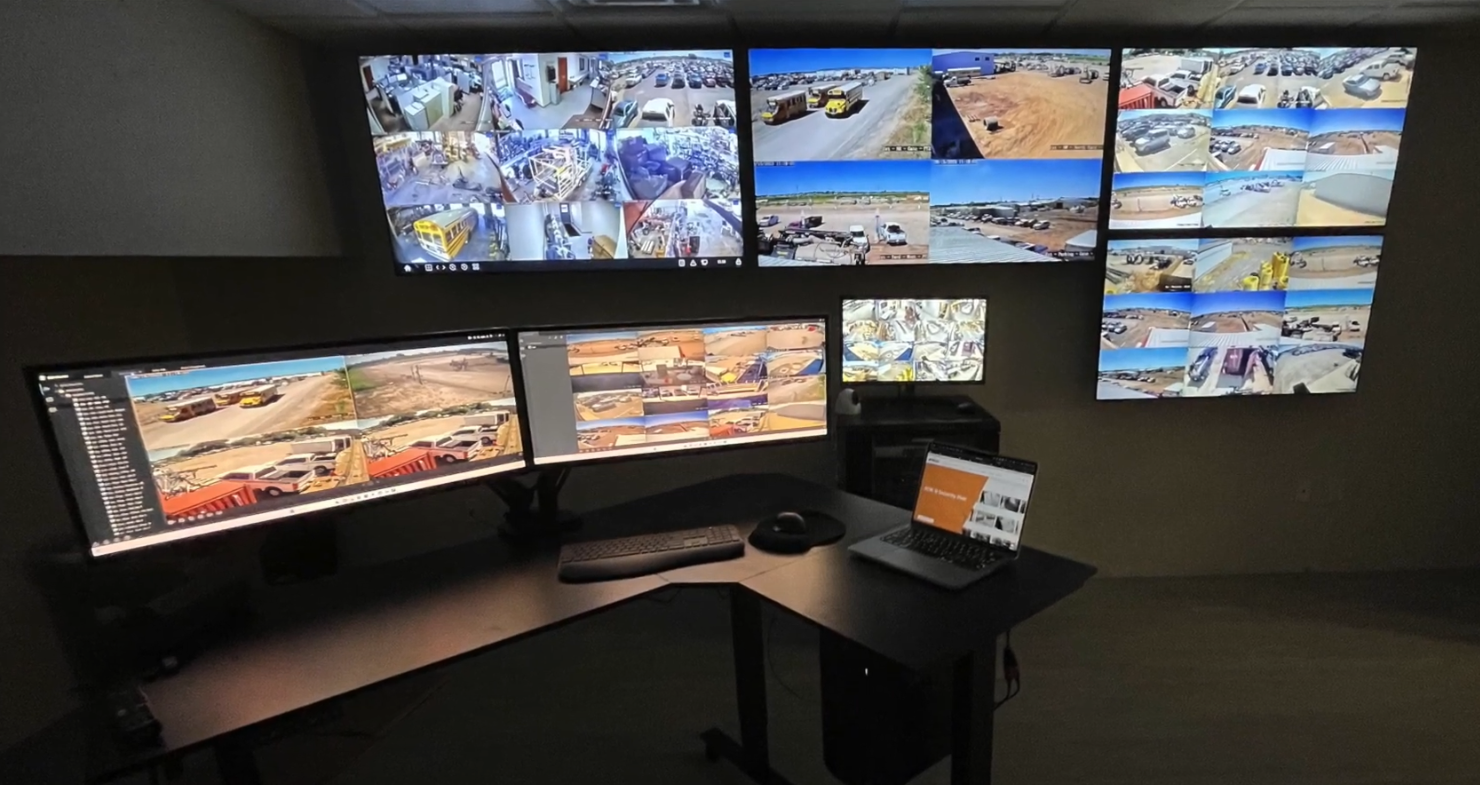
The demand for control room video walls is growing because businesses want a central place to view and manage multiple video feeds. From safety teams to reception to operations managers, the use cases are expanding fast.
This guide shows you how to design and build a system that works. Every section is focused on real-world needs, based on the most common questions we get at SCW.

Example of a video wall used for always-on situational awareness.
Understanding the Use Cases for Video Distribution
Video distribution isn't one size fits all. The way you deliver live video feeds depends on who needs to see what, how often, and in what format.
Some users need constant, uninterrupted access. Others need control, playback, or remote access. Understanding these differences helps you build a smarter, more efficient system.
Live Video as an Operational Tool
Security cameras used to serve a single purpose: record video for incident review. That’s changed. Nowadays, we're seeing significantly more people relying on live video feeds to do their job.
Many teams depend on live feeds to do their jobs - in real time.
Examples:
- Operations: Supervisors watching conveyor belts or packaging lines to spot jams or downtime
- Front Desk: Receptionists checking entrances, parking lots, or delivery zones to coordinate response
- Safety Officers: Confirming PPE usage or monitoring high-risk areas in manufacturing
- Sales Managers: Watching customer flow at car lots or retail showrooms
Live video allows these teams to act fast, stay informed, and reduce risk.
The takeaway: Live video is now a daily resource not just a backup.
Who Needs Access to Live Video?
Each organization is different, but these roles most often request video access:
| Role | Why They Need It |
|---|---|
| Security Personnel | Real-time surveillance, perimeter monitoring, incident response |
| Safety Teams | Monitor work zones, detect unsafe behavior, verify compliance |
| Front Desk Staff | Identify visitors, monitor entries and exits, reduce blind spots |
| Operations Managers | Oversee workflows, logistics, and process efficiency |
| Executive Teams | View high-level activity at multiple sites |
| IT/AV Support Staff | Manage distribution architecture, devices, and permissions |
| Remote Teams | Access live feeds offsite via PC or mobile |
How Often Do They Need It?
Use frequency can be just as important as the role:
| Use Frequency | Example Roles | Recommended Delivery |
|---|---|---|
| All Day | Front desk, control room staff, safety | Dedicated monitor, HDMI out, decoder |
| Frequent Checks | Security, operations, shift managers | PC viewing, video wall, mobile app |
| Occasional | Executives, auditors, IT | ViewStation (desktop), SCW Go (mobile) |
The Wrong Approach: “Let Everyone Log In”
Video is considered sort of an unlimited resource… people think, ‘I can just put it on my computer and I'm going to be able to see all my cameras.’ But of course, it's a little bit more complicated than that to make things useful for the right people.
Many facilities try to solve the demand for access by letting more users log into the camera system. That rarely works well.
Problems include:
- Network strain from multiple users streaming high-res video
- Bottlenecks on the NVR’s outbound bandwidth
- Increased IT overhead for training, permissions, and troubleshooting
- Poor user experience due to lag, load time, or required technical skill
Instead, it's smarter to plan distribution intentionally - using the right technology for each viewer.
Start with These Questions Before Designing
Before you choose your hardware, answer these:
- Who needs to see live video - and why?
- Do they need access all day or occasionally?
- Do they need to control video (playback, zoom)?
- Is the viewer remote, local, or mobile?
- How many displays are needed?
- What are the network limitations, if any?
When building out a security camera system, sometimes the video system and who has video, and how they get it, becomes a system in itself.
The takeaway: The more precisely you match the video delivery method to the viewer’s needs, the more stable, scalable, and cost-effective your system becomes.
Core Technologies for Video Distribution

Control room video wall example: multiple screens for multiple roles.
Once you know who needs access to live video and how often, the next step is choosing the right way to deliver it. Each method from NVR output to decoders has a specific purpose. The best results come from using them together in the right mix.
This section covers the four primary technologies used for distributing live video in SCW systems.
NVR Direct Output (HDMI/VGA)
Most SCW NVRs include HDMI and/or VGA ports. These allow you to connect a monitor or TV directly to the recorder.
This is one of the easiest and most reliable ways to give someone access to live video — especially when the NVR is located near the viewing station.
Best for:
- Front desk staff
- On-site security rooms
- Managers who need constant visibility
Pros:
- Zero latency (direct feed)
- Doesn’t use network bandwidth
- No PC required
- Always-on display, no login needed
Cons:
- Limited number of output ports
- HDMI distance limitations (more below)
- Can’t view remotely
The above method gives you the lowest latency and the smoothest video possible... it’s basically a direct connection.
HDMI Extenders Over CAT6
HDMI has physical distance limits. Past 50 feet, signal quality can drop. That’s where HDMI extenders come in.
These devices use CAT6 Ethernet cable to transmit HDMI video signals over long distances - often 300 feet or more.
Some extenders also support USB passthrough, allowing remote mouse control of the NVR from the extended location.
Ideal for:
- Situations where the NVR is in a server room or back office
- Extending live video to front desk TVs, lobbies, or remote corners of a facility
- Avoiding the need to place NVRs in public or shared spaces
PC Viewing (SCW ViewStation)
PC viewing gives flexibility and power. With SCW’s ViewStation desktop VMS, users can monitor live video, review playback, and manage multiple camera systems all from one screen.
Best for:
- Remote users
- Multi-site managers
- IT and security teams who need full control and layout options
Considerations:
- Requires a capable Windows PC
- Consumes network and NVR bandwidth
- Adds complexity (software, updates, training)
- Less ideal for rotating or short-term staff
PC viewing gives a ton of flexibility… but there are considerations... you’ve got to have training, good specs, and it needs bandwidth. If you’ve got guards or rotating staff, that’s a challenge. You can’t always train every new person on the software.
Video Decoders
Video decoders are external devices that connect to the network. They pull video streams from one or more NVRs and display them across multiple screens. SCW offers models with 1, 6, or 12 HDMI outputs.
They’re perfect for control rooms, central monitoring stations, or anywhere you want to build a video wall with dedicated feeds.
How it works:
- You connect the decoder to the network
- Configure which NVRs/cameras display on each output
- Send different camera views to different TVs all without a PC
Best for:
- Centralized monitoring
- Multi-screen, always-on video walls
- Facilities with multiple NVRs and display zones
Pros:
- Scalable, flexible placement
- Doesn’t require a PC
- Centralized control for many displays
Cons:
- No playback functionality
- No mouse or interactive control
Designing a Control Room Video Wall
A control room video wall is more than a collection of screens. It’s a decision-making tool one that helps teams maintain awareness, respond faster, and reduce risk. Whether you're watching customer areas, workspaces, or access points, a properly designed video wall delivers the right views to the right people.
Planning Your Layout
Start with these questions:
- How many screens do you need?
- Do they show different camera views or mirror the same feed?
- Do you need full control or just passive viewing?
- Where are the users located: front desk, remote office, command center?
Then match your setup to the right tools:
| Need | Recommended Solution |
|---|---|
| 1–2 screens near the NVR | NVR HDMI out |
| Screens far from the NVR | HDMI extender over CAT6 |
| Multi-screen command center | SCW Decoder (6 or 12 output) |
| Occasional remote access | SCW ViewStation or SCW Go App |
| Shared access across teams | Mix of NVR out + decoder + PC |
Example Systems & Scenarios
Small Office
- 1 SCW NVR
- HDMI extender to front desk
- Constant display of entry camera and parking lot
Car Dealership
Manufacturing Plant
- NVR located in server room
- Safety office receives video via HDMI extender with USB passthrough
- PC viewing for playback and process audits
Multi-Site Retail
- Each location has an SCW NVR
- Corporate security uses ViewStation to monitor all sites
- Stores use HDMI outputs for in-store monitoring
Planning and Installation
Designing a control room video wall or multi-screen setup isn’t just about what shows up on the screens. It’s about how everything connects, where it's installed, and how easily staff can use it day-to-day without logging into anything or waiting on support.
Whether you're setting up a live view for a receptionist or building a full-blown command center, careful planning prevents wasted effort and ensures the system works as intended.
Define the Goals of Each Viewing Zone
Start with the purpose of each screen. What will be shown, and who will rely on it?
| Viewing Zone | Purpose | Viewer Type |
|---|---|---|
| Front Desk | Entrance, lobby, parking lot | Non-technical staff |
| Safety Office | Foam pit, training zones | Safety team / ops |
| Manager’s Office | Workflow, customer areas | Operational manager |
| Control Room | Full camera grid, multi-site feeds | Security or IT teams |
Each screen should solve a real, operational problem. Don’t add displays just to fill space.
Mapping the Space: Real World Example - Trampoline Park
One of the most common questions we hear is: "Where should screens go?"
Here’s how one trampoline park answered it. John’s Jump House had 4 key concerns:
- High-risk areas: Foam pit, entrance, and lobby
- High traffic: Guests constantly entering and exiting
- Limited staff: Front desk team needed maximum visibility with minimal distraction
- Simple tools: No PC logins or training required
With trampoline parks, video = safety.
This is the actual layout of a trampoline park we worked with. We used this map to figure out which areas needed to be on screen like the foam pit and parking lot and where to place the screens so staff could see everything clearly.
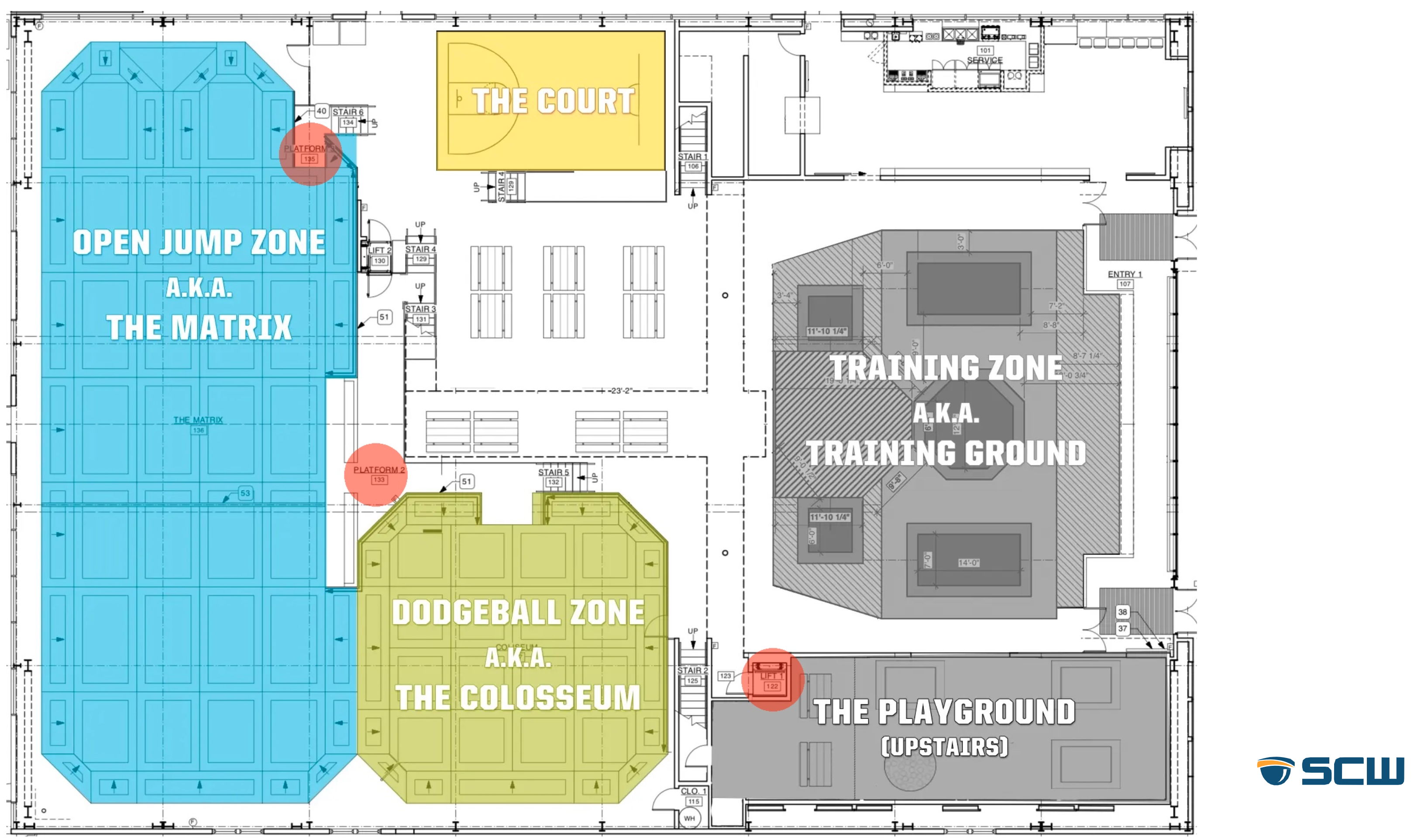
Facility floorplan used to determine display placement and monitored zones.
How it was solved:
- A decoder was installed in the IT closet
- HDMI cables ran to four wall-mounted displays at the front desk
- Each screen showed a live feed: foam pit, entrance, parking lot, and lobby
- No interaction required - always on, always relevant
We made it so that staff didn’t need to touch anything. Just walk in, and the right views are on screen.
This setup kept the NVR and equipment secure while delivering real-time visibility where it was needed most.
Extending Video Across the Facility
HDMI Limitations: Standard HDMI cables max out around 50 feet. Any run longer than that needs a CAT6-based extender.
Regular HDMI cables can’t go very far. This shows how we use extenders and CAT6 cable to send the video signal across longer distances like from a server room to a front desk screen.
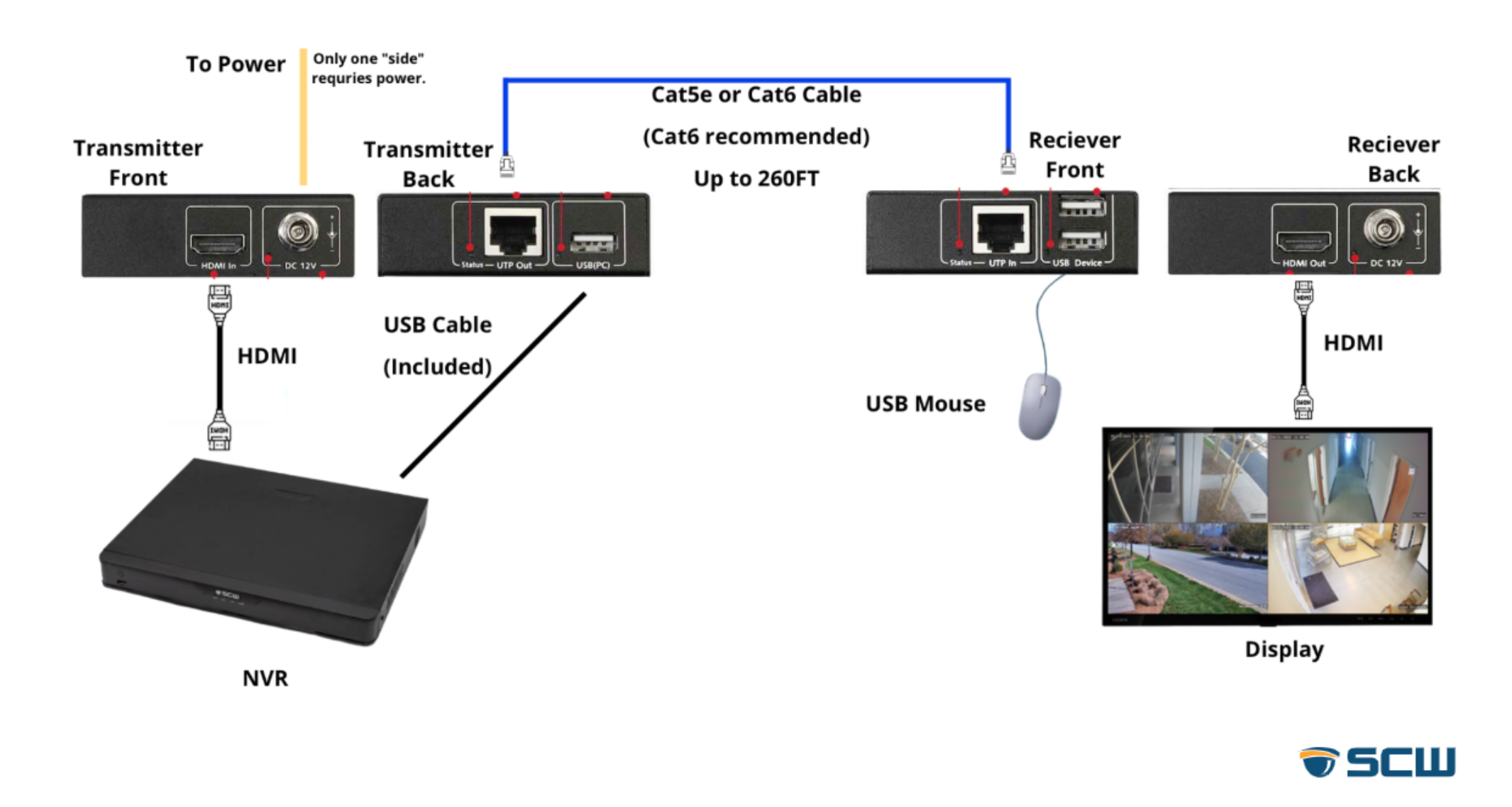
HDMI over CAT6 extender: reliable long-distance video to remote displays.
Benefits of HDMI Extenders:
- Long-distance coverage (200–300 feet)
- Reliable signal transmission
Using Splitters for One-View, Multi-Screen Needs
If you want the same video feed on multiple displays (for example, the entry camera shown on two walls), use an HDMI splitter.
This shows how you can make one camera feed appear on more than one TV. Great for entrances or common areas where several people need to see the same thing.
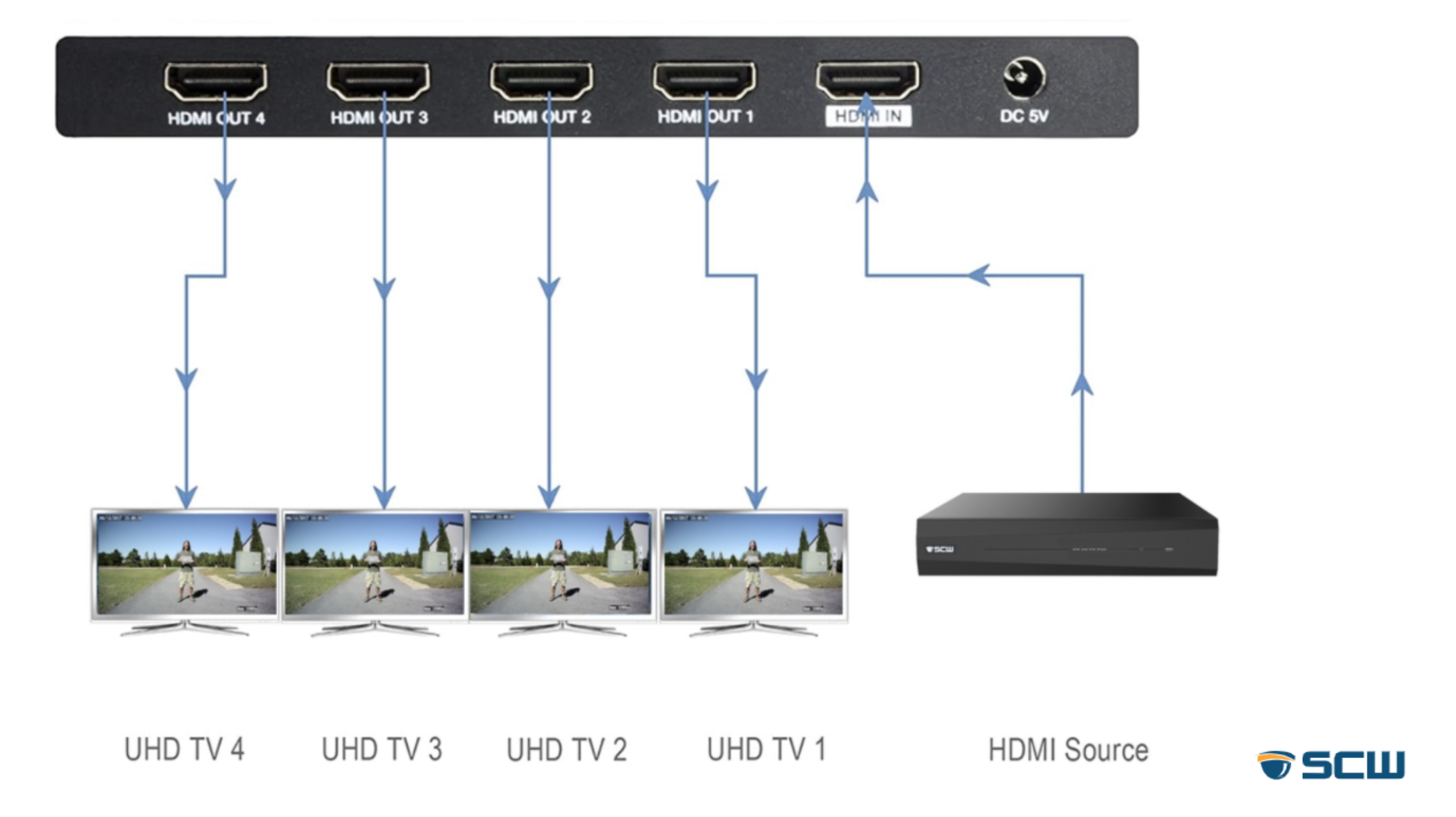
Splitters mirror one feed across multiple TVs for shared visibility.
This avoids wasting ports and simplifies your wiring. Just be aware that all screens will mirror the same camera view - no customization per screen.
Decoders for Centralized, Multi-View Video Walls
When you need a true control room setup, use an SCW Decoder. These small boxes sit on your network and feed multiple screens from multiple NVRs all without a PC.
This little box is the decoder. It pulls in camera feeds from the system and sends them out to several TVs. Each screen can show something different.

Back of the decoder: HDMI outputs, network, and power connections.
This is what a real decoder setup looks like in action. It’s small and can be mounted out of the way.
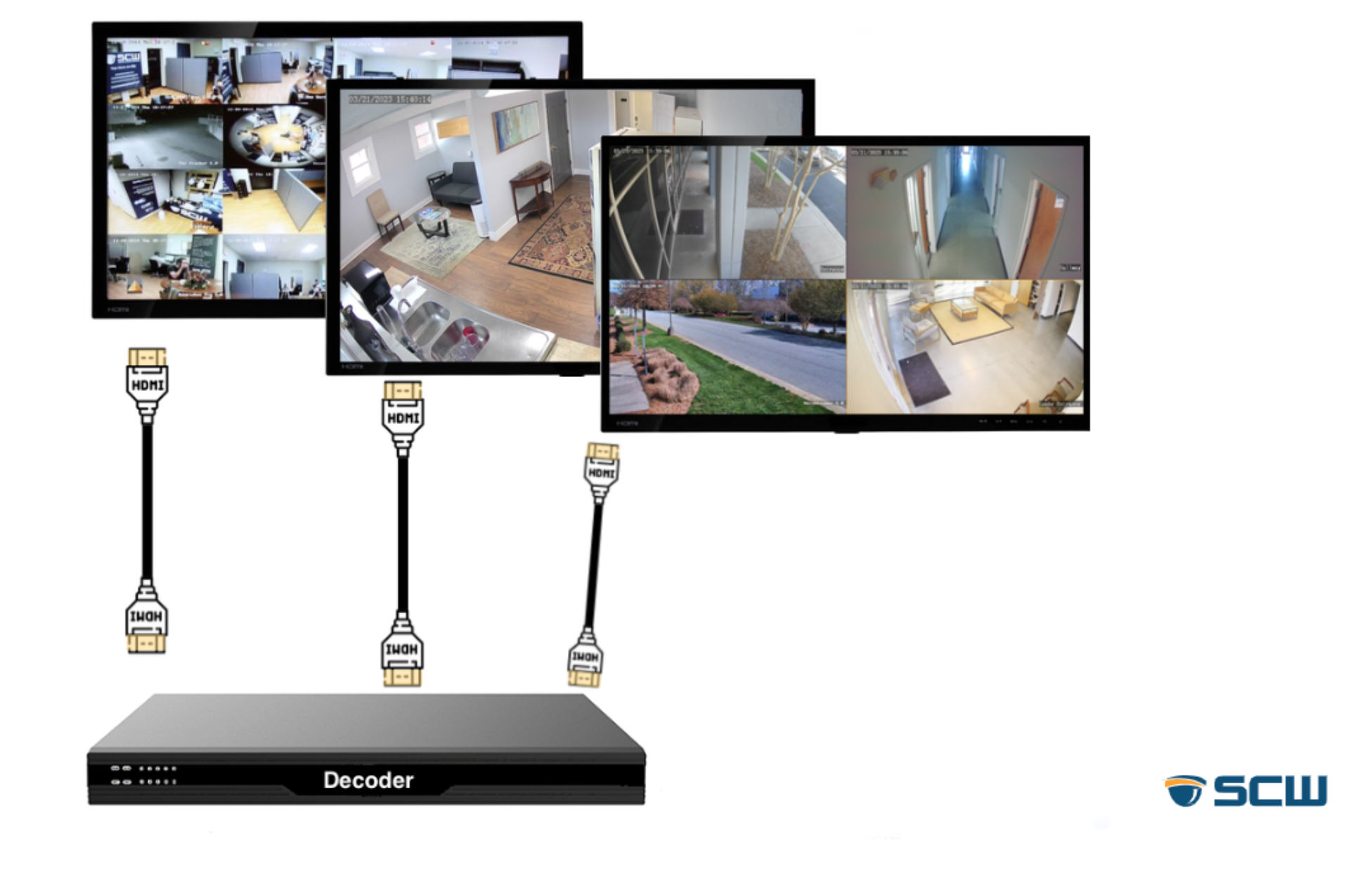
Decoder in action: multiple screens, each with a different live camera view.
Benefits:
- Central control without PCs or logins
- Supports 1, 6, or 12 HDMI outputs
- Assign different cameras to each screen
- Easily expandable over time
This is the same approach used at the trampoline park example, where a 6-port decoder supported four wall-mounted screens at the front desk - no software, no maintenance.
Physical Mounting & Placement
Mounting and placement affect usability more than people expect. Don’t overlook the ergonomics.
- Wall vs. ceiling mounts: Wall is easier for eye-level screens. Ceiling mounts work better in shared viewing areas.
- Eye-line positioning: Staff shouldn’t need to crane necks or turn away from guests to view feeds.
- Cable runs: Use wall plates, conduit, or raceways for clean, protected wiring especially in public areas.
- Power access: Plan outlets for each screen, decoder, or extender. Avoid using long daisy-chained power strips.
Monitor mounting options for clear sightlines and safe cable routing.
Next Steps: Start with a Design Consultation
SCW can help you plan a system that fits your space, team, and budget. No guesswork, no overspending. Get a quote from our specialists today and design your control room video wall with confidence.