
How to Sort and Find Events in Event View
The survail cloud VMS has multiple ways to sort video events so that you can easily find what you are looking for.
Log In To Survail
You can log into Survail at https://app.survail.com/.
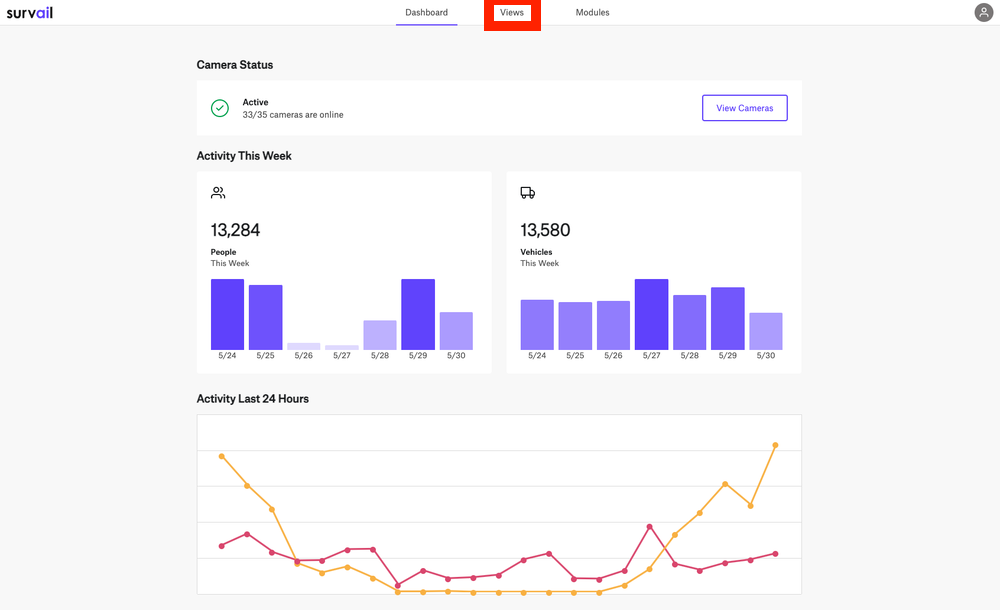
Click on "Views" in the Top Menu
At the top of the screen, you can see the main Survail Menu. Click on the "Views" Tab. This will lead you to the Events page.
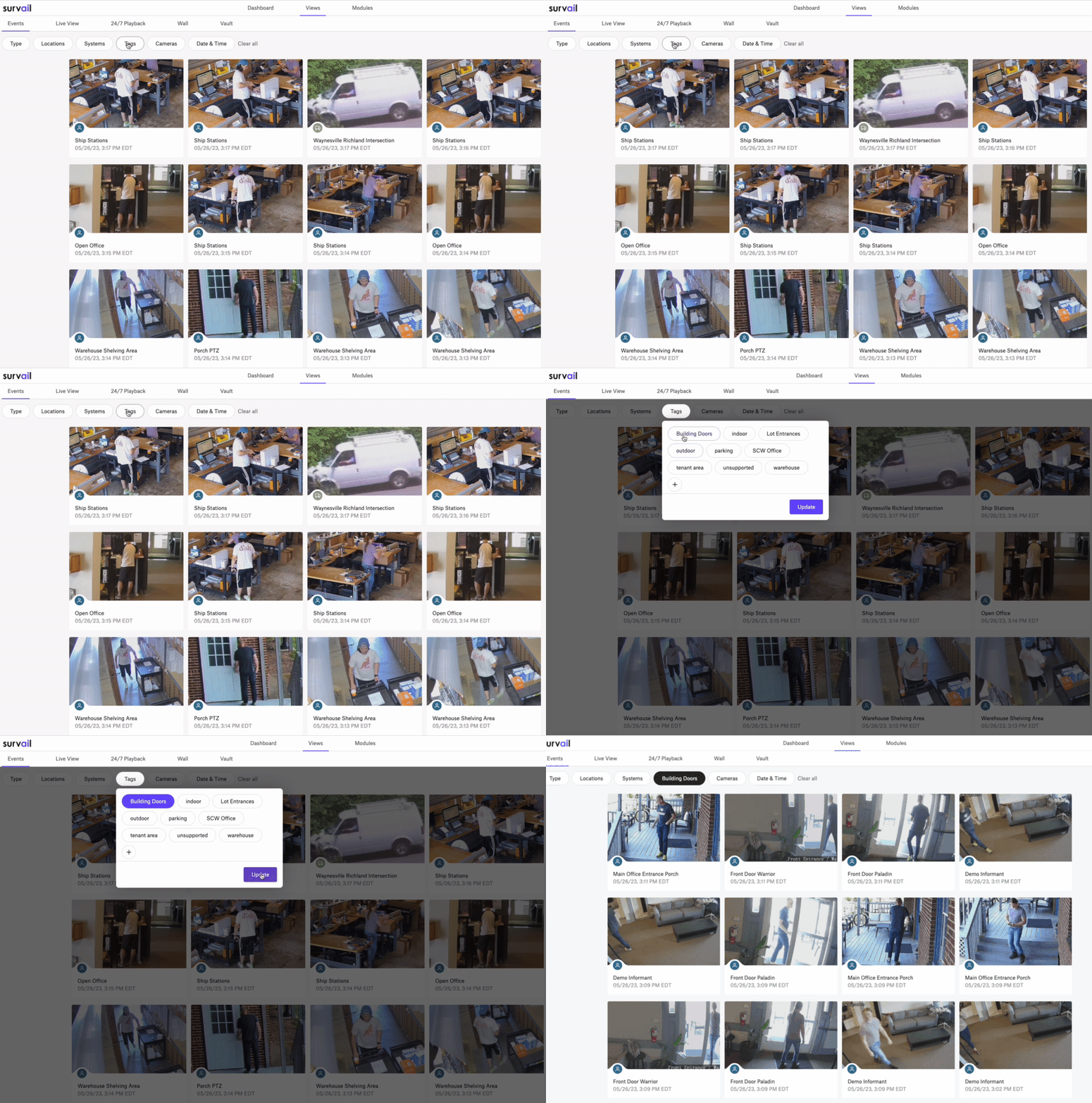
Event Filters
You can filter events by what's in them, by location, by ICVR hardware, by camera tag groups, by individual camera(s), and/or by date / time. You can search by multiple criteria at once.
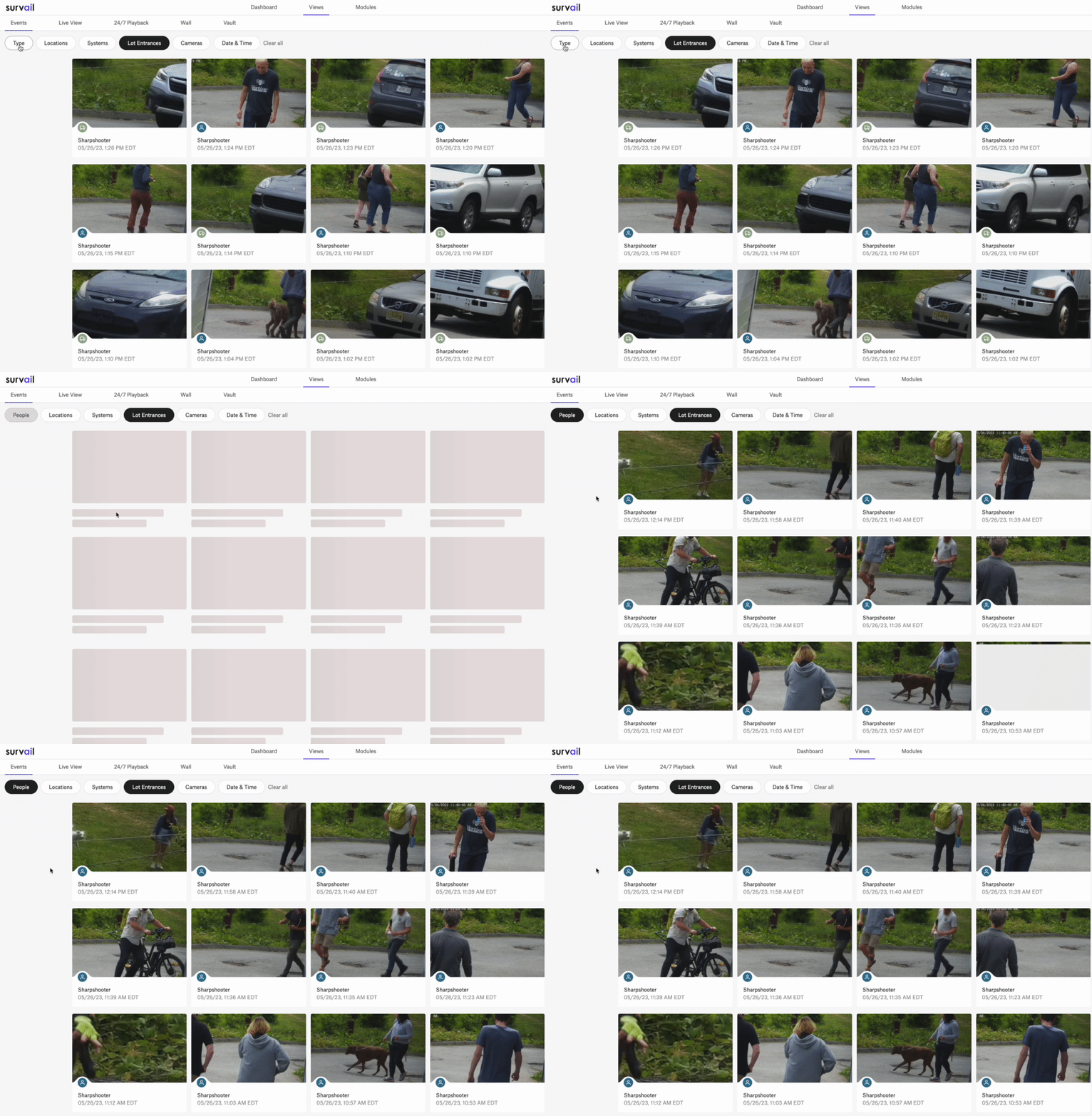
Event Filter Experience
You can combine tags with other search filters, such as event type, location, recording hardware, specific camera, or date and time. In this video, you can see the combination of events that contain a person and which are on cameras tagged as "Lot Entrance".
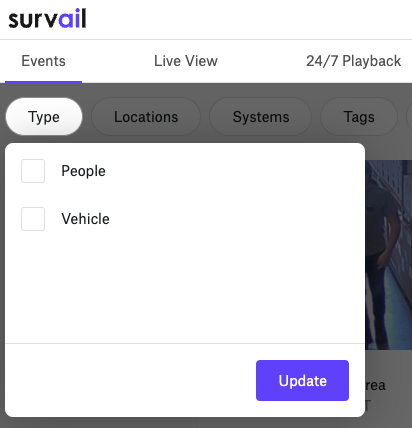
Event Type
Event Type allows you to filter events by what the Survail AI found in the video.
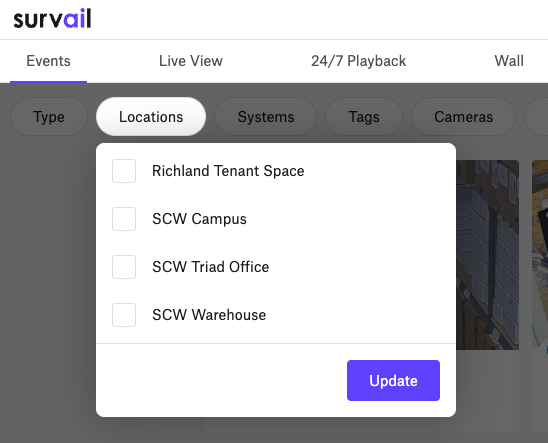
Locations
Locations are the physical addresses where Survail ICVRs are located. The location criteria is only visible if you have multiple Survail ICVR boxes at have multiple locations. If you only have one location, this option will not be shown.
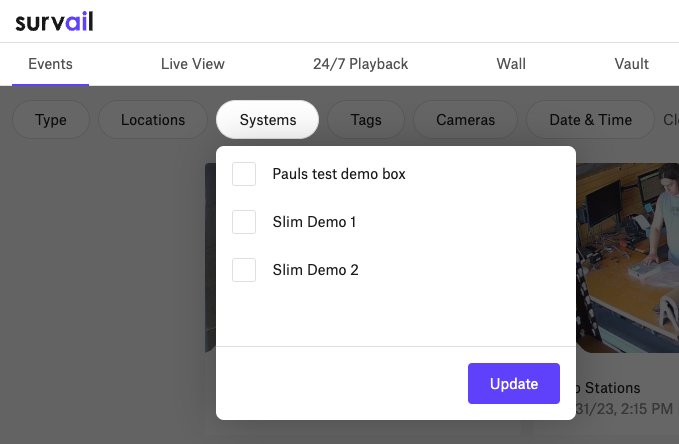
Systems
Systems are the Survail ICVRs. The system criteria is only visible if you have multiple Survail ICVR boxes. If you only have one ICVR, this option will not be shown. You can have multiple ICVRs at a location.
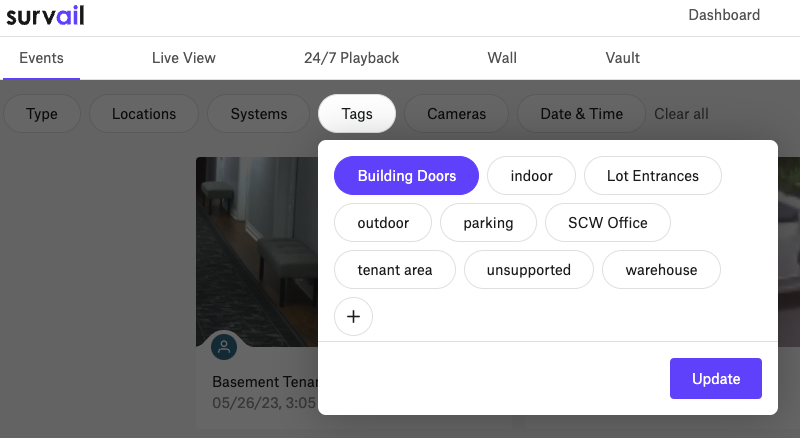
Camera Tags
Camera Tags are any group of cameras. Camera tags allow you to find views without having to remember camera names. Cameras can have multiple tags, such as being both "Outdoors" and "Parking Lot."
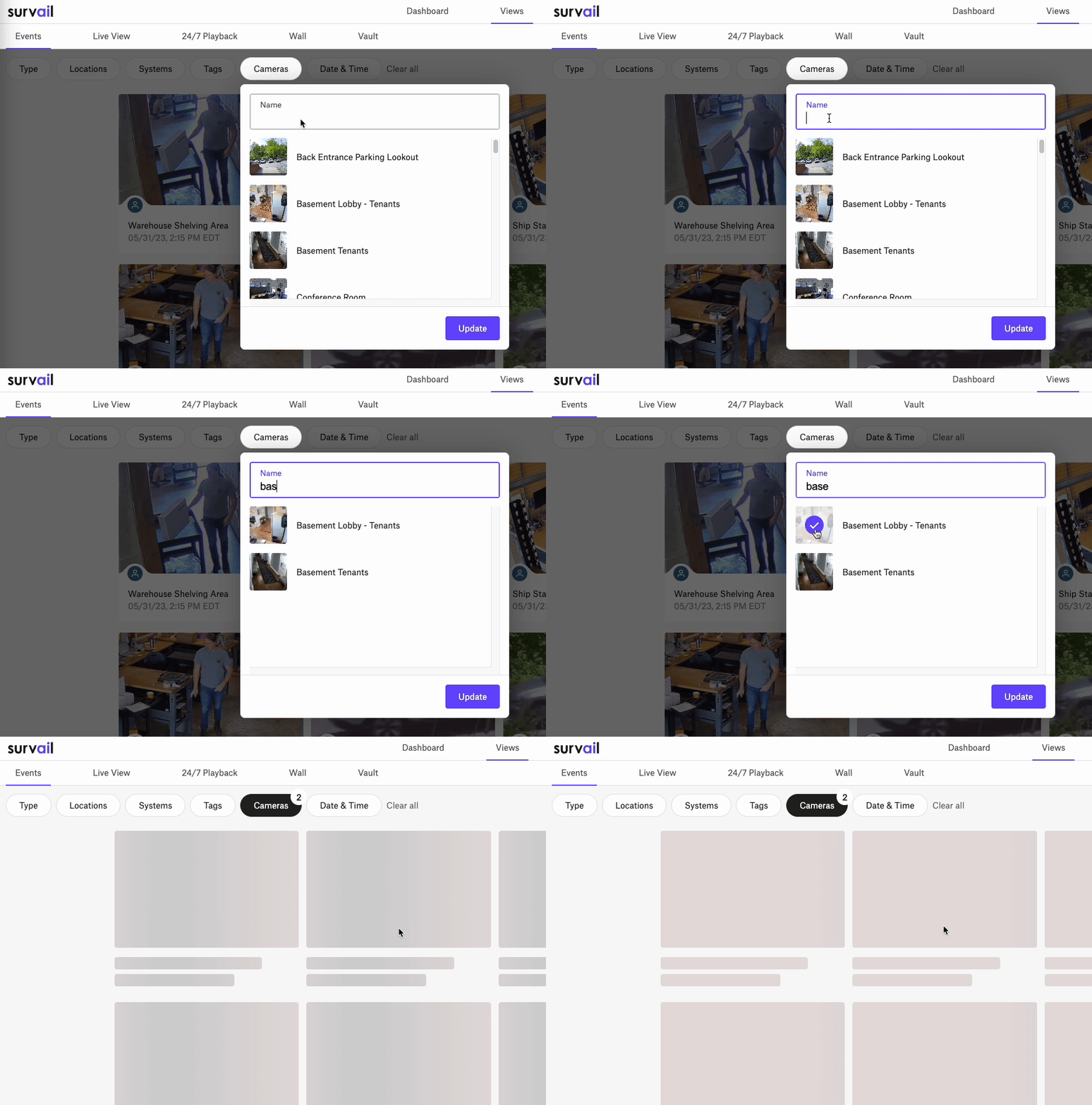
Camera Names
You can filter by camera names. In addition to being able to select multiple cameras, you can also search by name and narrow down the results in the filter.
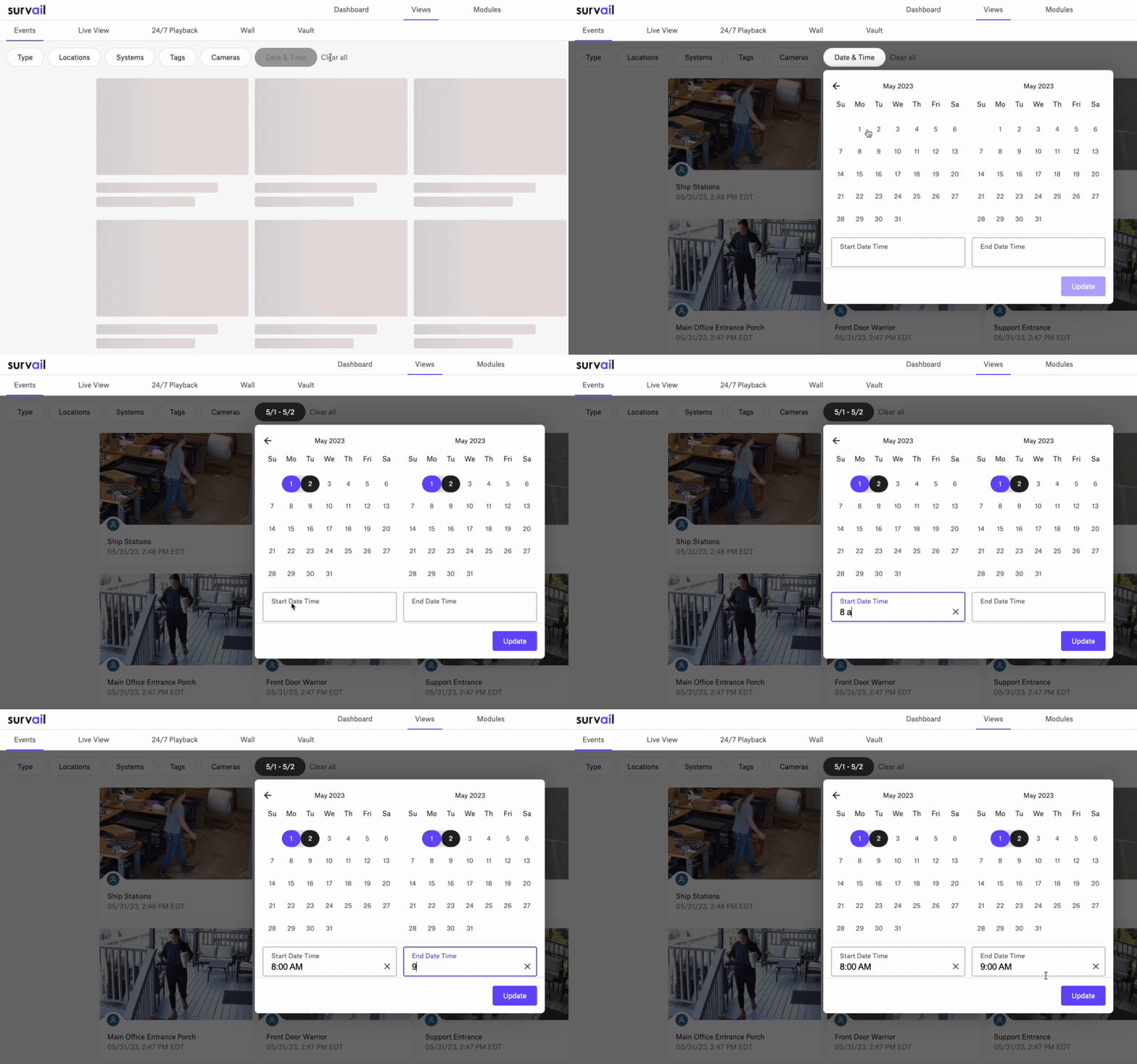
Date and Time
You can also filter by a start and end date and time. You can see in this video that we are filtering events from May 1 at 9 AM to May 2 at 10 AM.
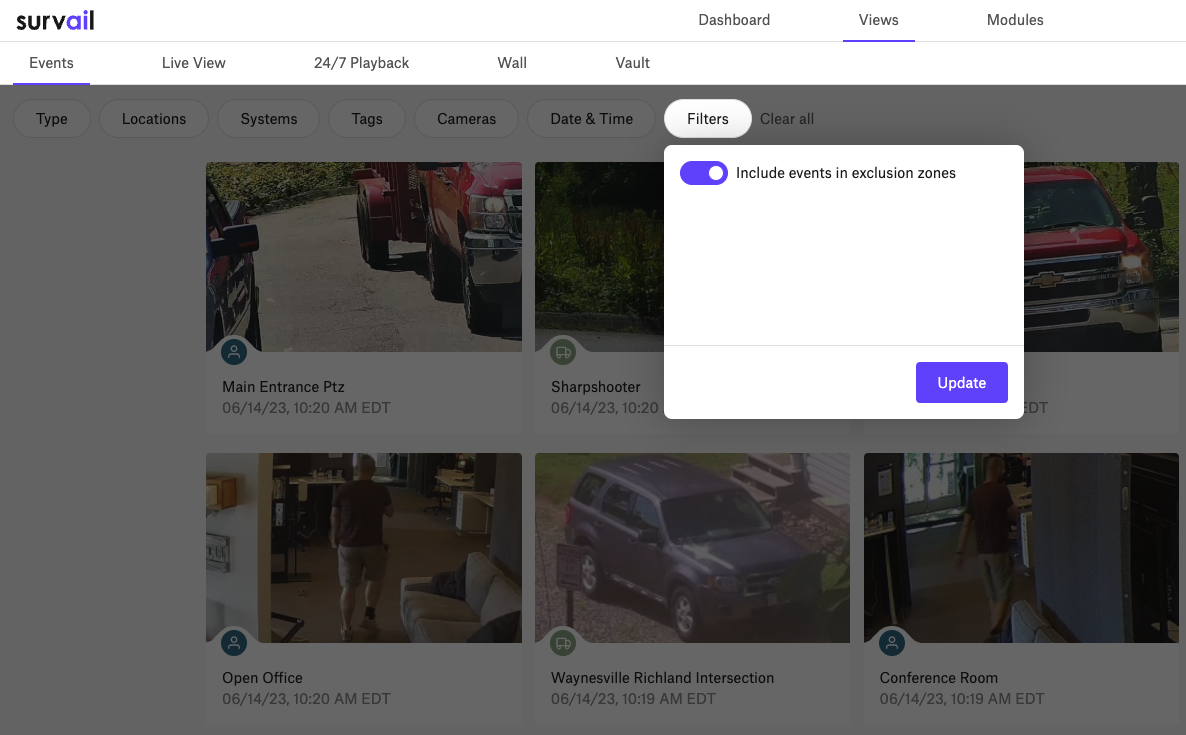
Include Exclusion Zones
Exclusion Zones are a great way to remove non-security events from your event feed or alert feed. Exclusion zones are often drawn on roadways, neighbor's properties, or parking spots because in most situation you don't want an alert or a new event being created just to report the presence of a person on someone else property. However, what if you're trying to help that police with a crime on your neighbor's property? or find out when a vehicle parked in an exclusion zone was damaged by a tree? Toggling "include events in exclusion zones" allows you to see the vehicle or people events in areas that may not normally matter to you.
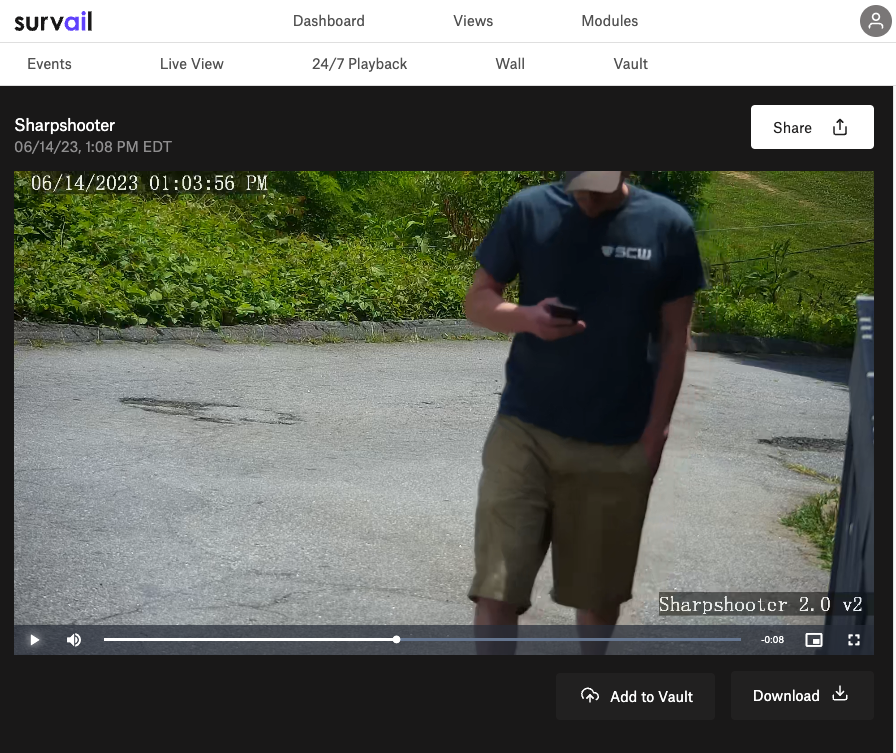
Click Event to View
Clicking an event card in the event filter will take to the event player page and the video will automatically start playing.
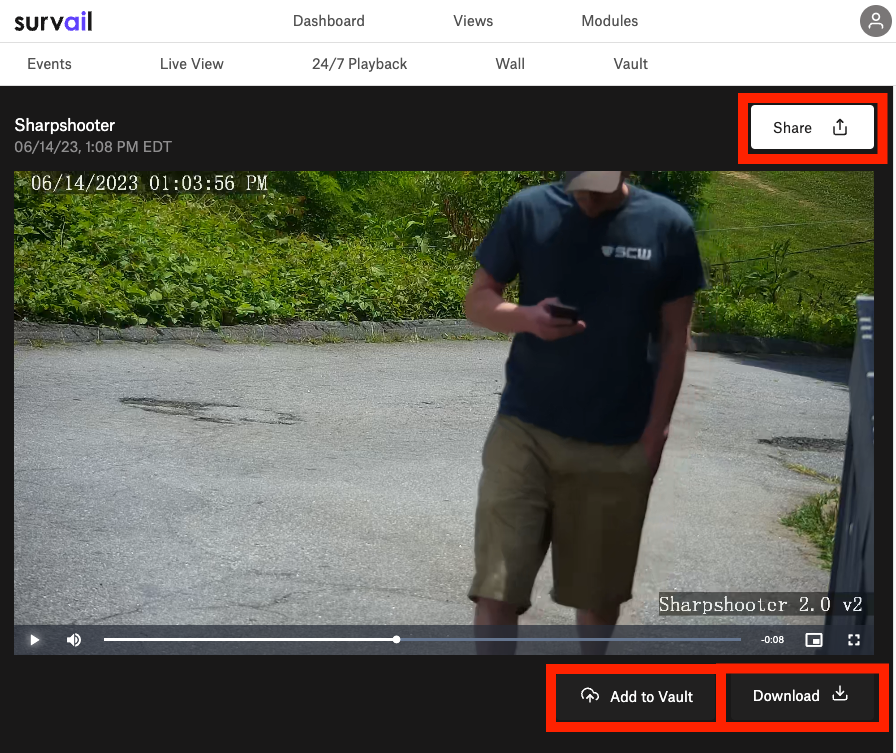
Optional: Take an Action
From the Event Viewer you can choose to "Share," "Download," or "Add the Event to Vault." Those related guides are in the Emergency Management Sharing, Vault Long Term Storage, and Incident Reporting Tools guides section.