
Downloading Video from Survail
Download is designed for the legal system, where the video must be turned in as evidence, or in situations where share links cannot be accessed (such as a rural area with no cellular internet).
Two Options:
You can download video events from the survail event viewer pages or from vault long term incident storage.
Downloading from Vault
Downloading an Event
Log In To Survail
You can log into Survail at https://app.survail.com/.
Log In To Survail
You can log into Survail at https://app.survail.com/.
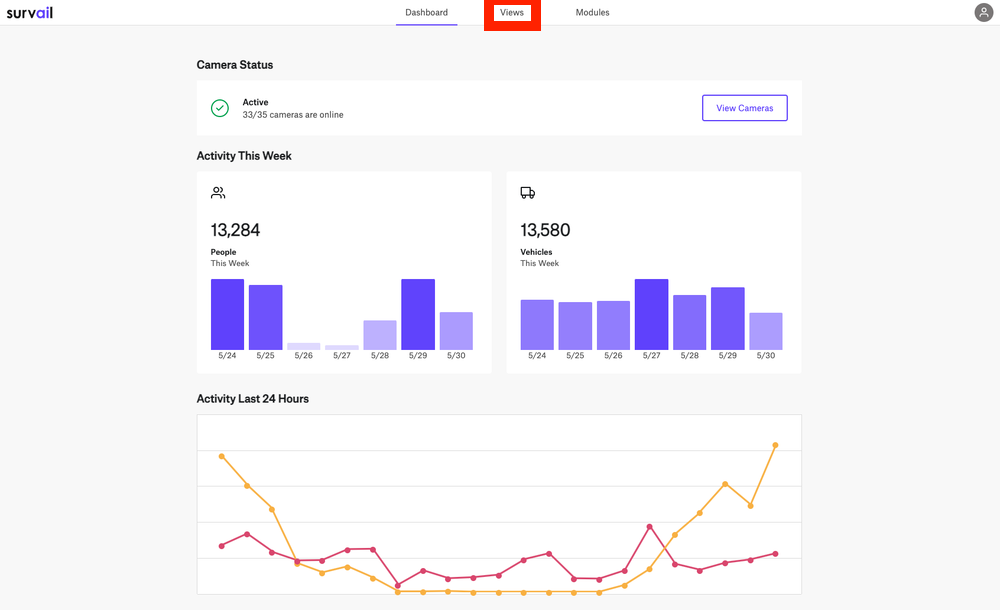
Click on "Views" in the Top Menu
At the top of the screen, you can see the main Survail Menu. Click on the "Views" Tab. This will lead you to the Events page.
Click on "Views" in the Top Menu
At the top of the screen, you can see the main Survail Menu. Click on the "Views" Tab. This will lead you to the Events page.
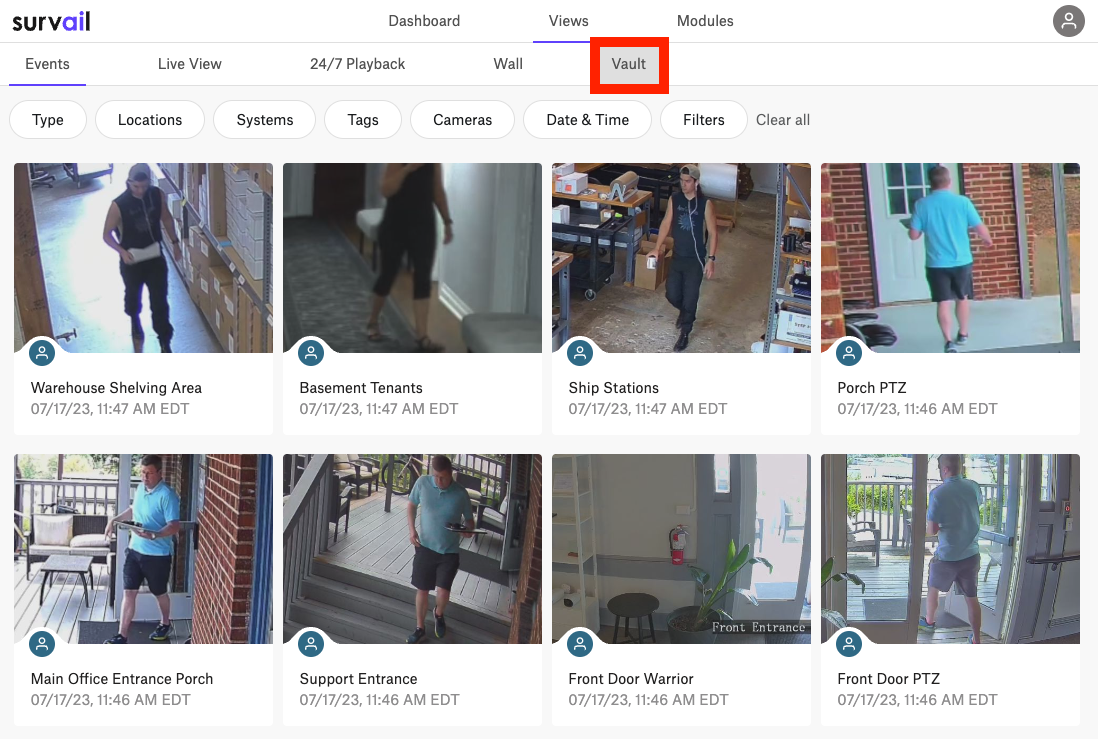
Click Vault
Click "vault" in the Views Submenu. This will take you to your Video Vault.
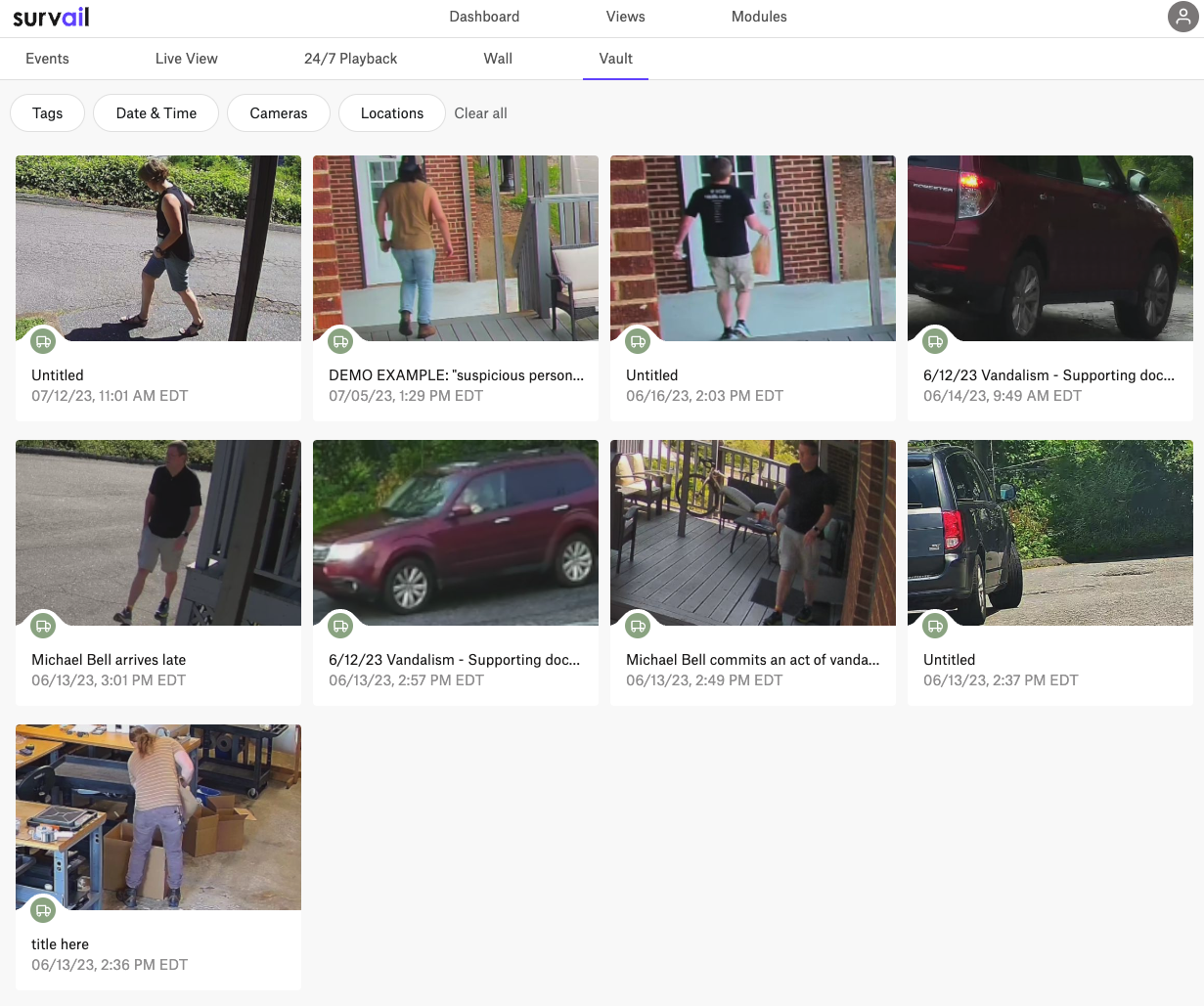
Click the Incident Card to View Vault Incident
This brings you to the vault incident viewer page.
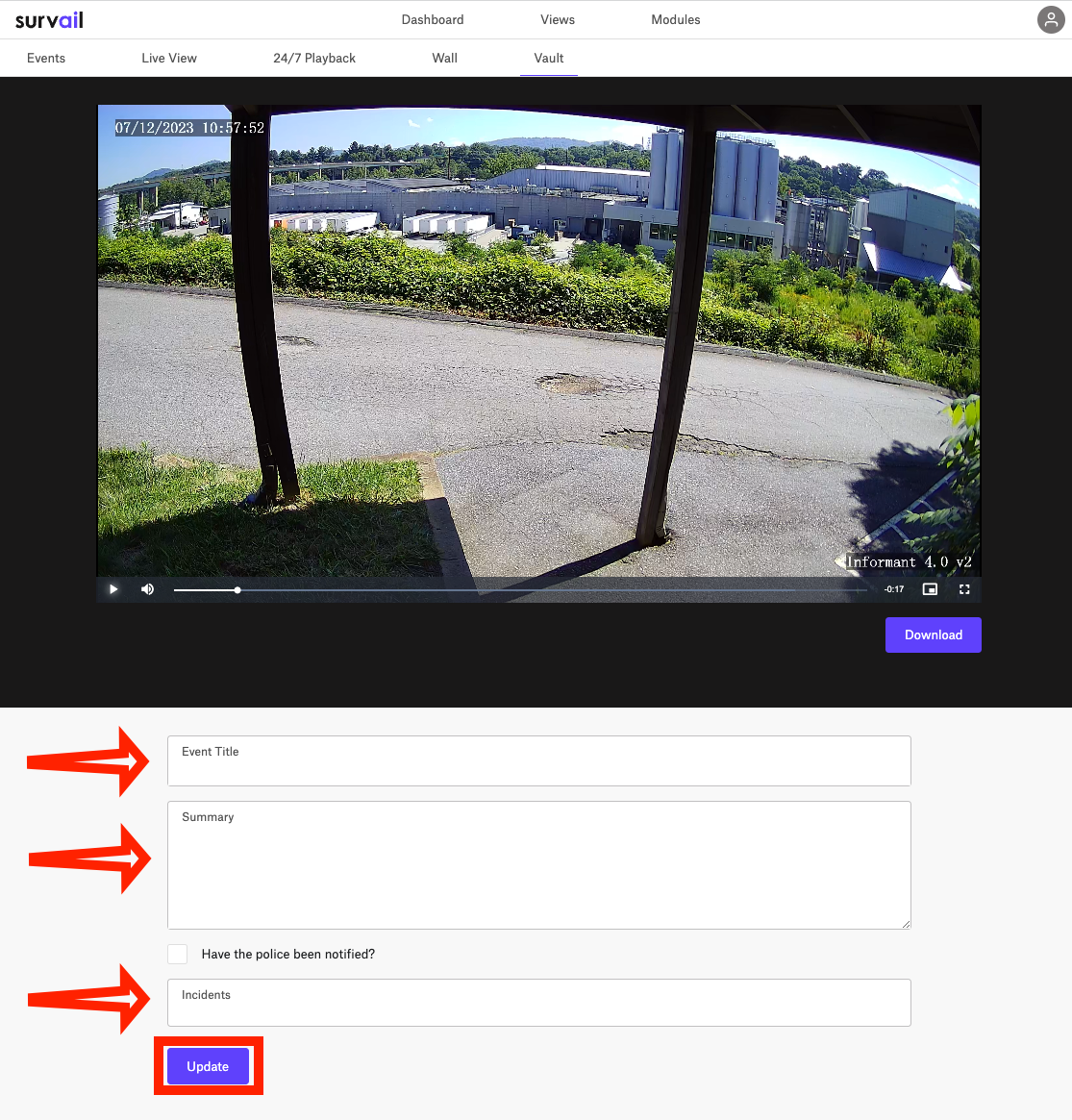
Video Vault Incident Report
When you store an event in vault and convert in into an incident, you have the option to title the event, give a summary, list whether the police have been notified and tag the event to a legal case file, HR file, or other potential filtering criteria. It is not necessary to fill this out, before downloading the video.
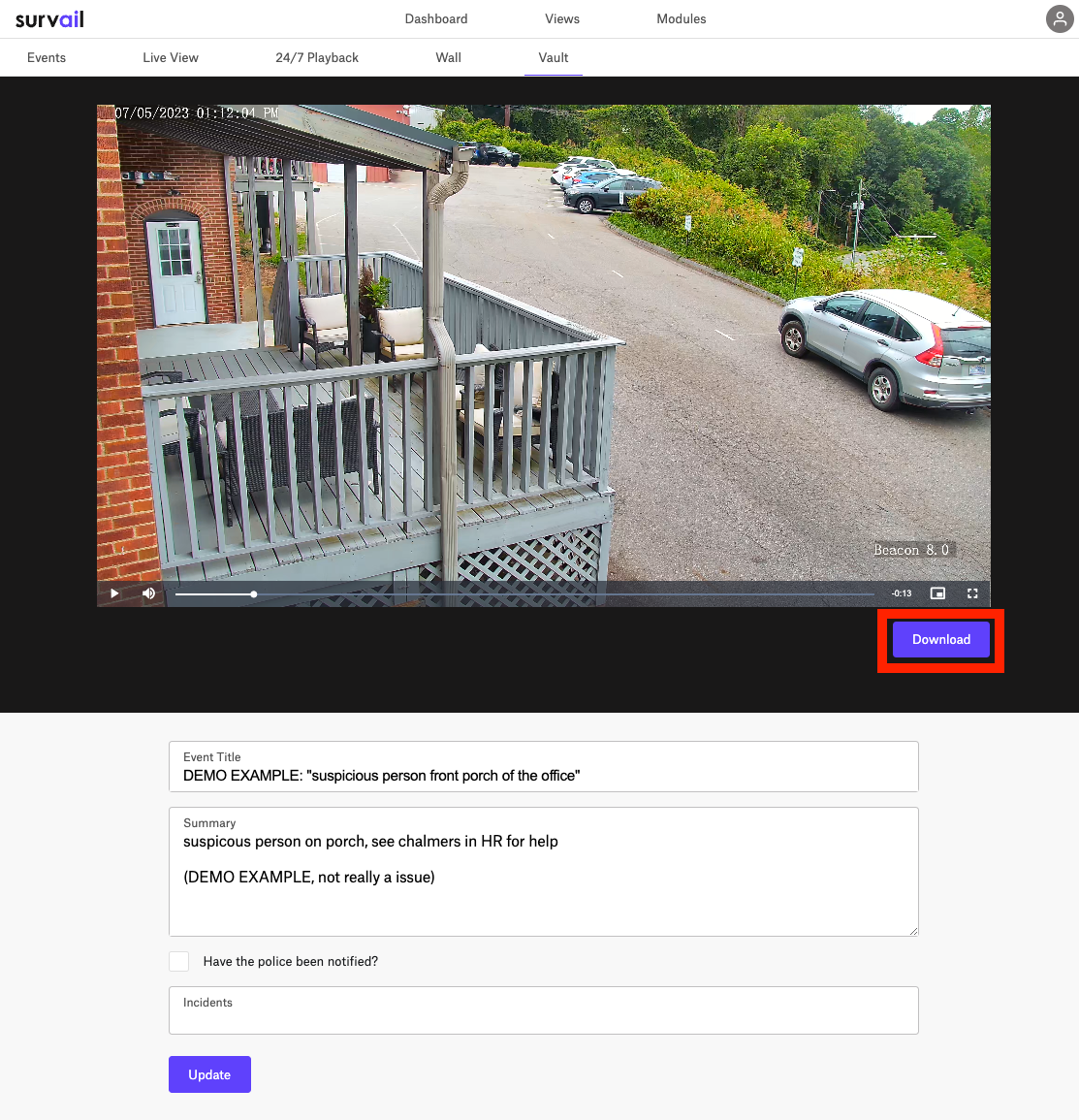
Click the Download Button
The download button is under the video player on the right side, before the incident report. The video will download to your computer's Download folder. You should be able to open the video in VLC. If you are recording in H.265, you will want to make sure that your computer has the H.265 decoder (included in all Macs, available on Windows App Store for $1.00).
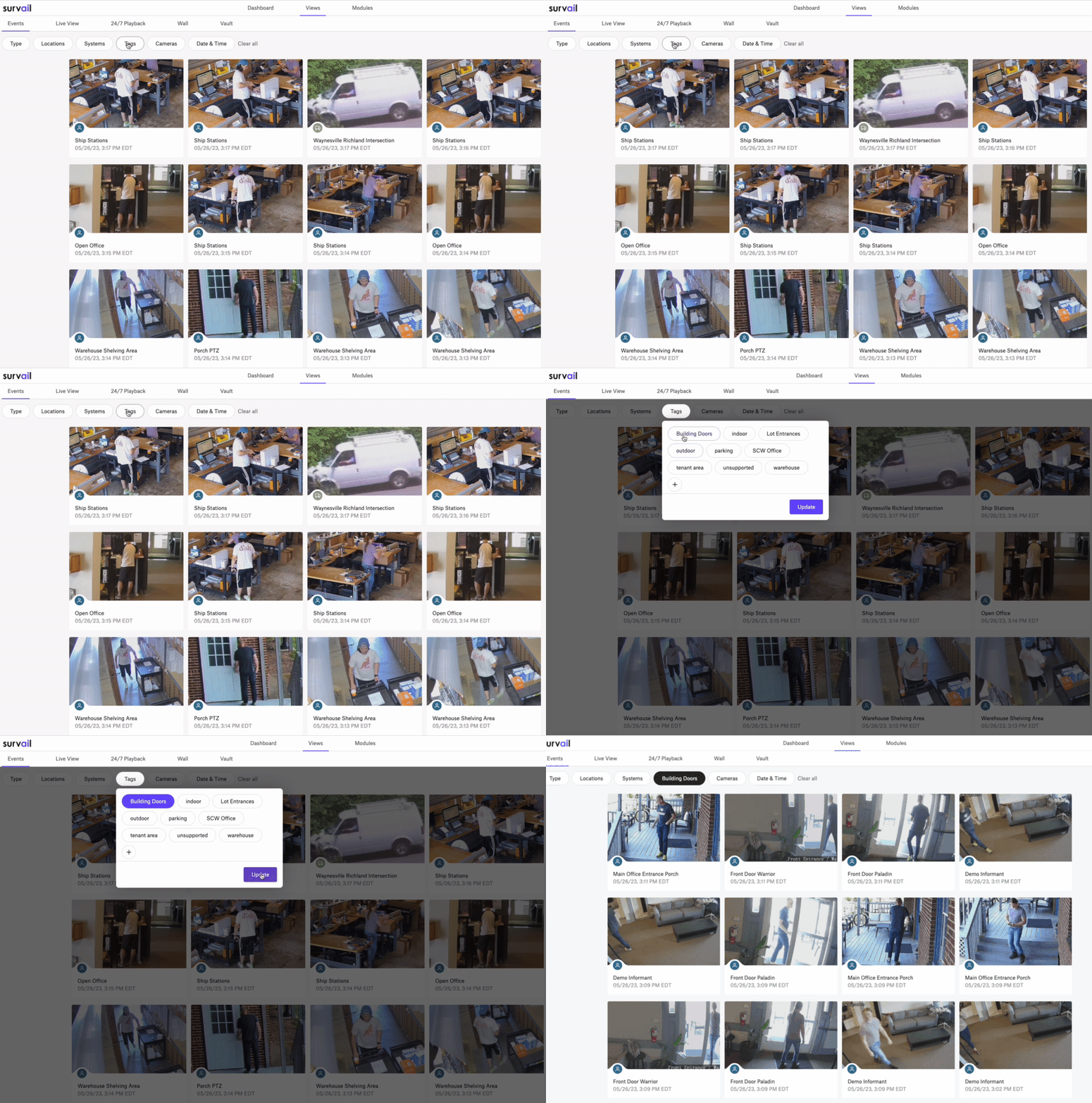
Find an Event via the Filters
You can filter events by what's in them, by location, by ICVR hardware, by camera tag groups, by individual camera(s), and/or by date / time. You can search by multiple criteria at once.
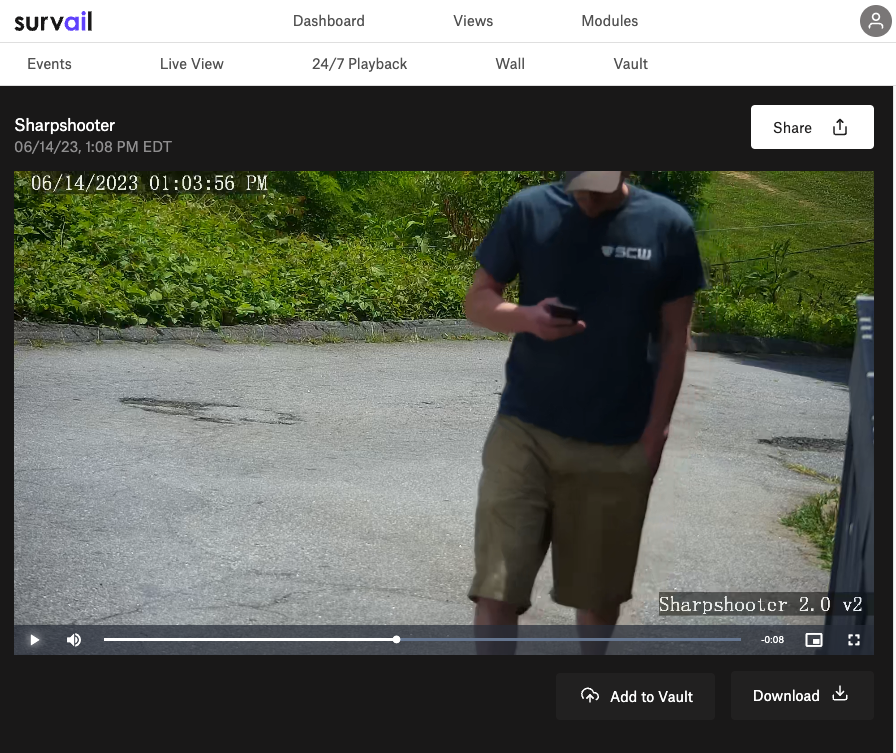
Click the Event Card to View Event
This brings you to the event viewer page.
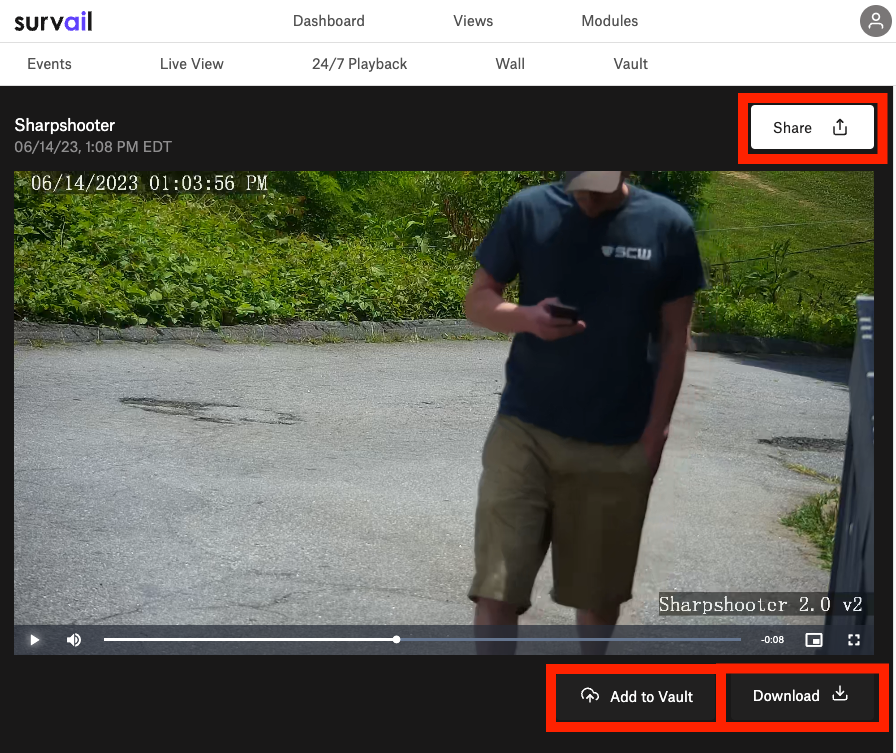
Click the "Download" button
The Download Button is located below the video player on the right side. The video will download to your computer's Download folder. You should be able to open the video in VLC. If you are recording in H.265, you will want to make sure that your computer has the H.265 decoder (included in all Macs, available on Windows App Store for $1.00).
The First Responder Share function is an easy way to share events with first responders in an emergency, but only if cellular internet is available. If it is not, you may want to download the video and distribute it via thumb drives or other removable media. This process enables you to do this.