
How to Add a Custom User Role in Survail
Survail allows you to create customer user roles with granular permission levels. You can define whether a user can view, edit, add, or delete any feature in survail.
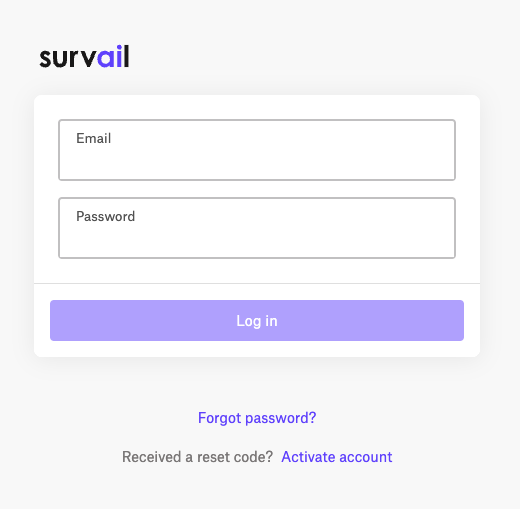
Log In To Survail
You can log into Survail at https://app.survail.com/.
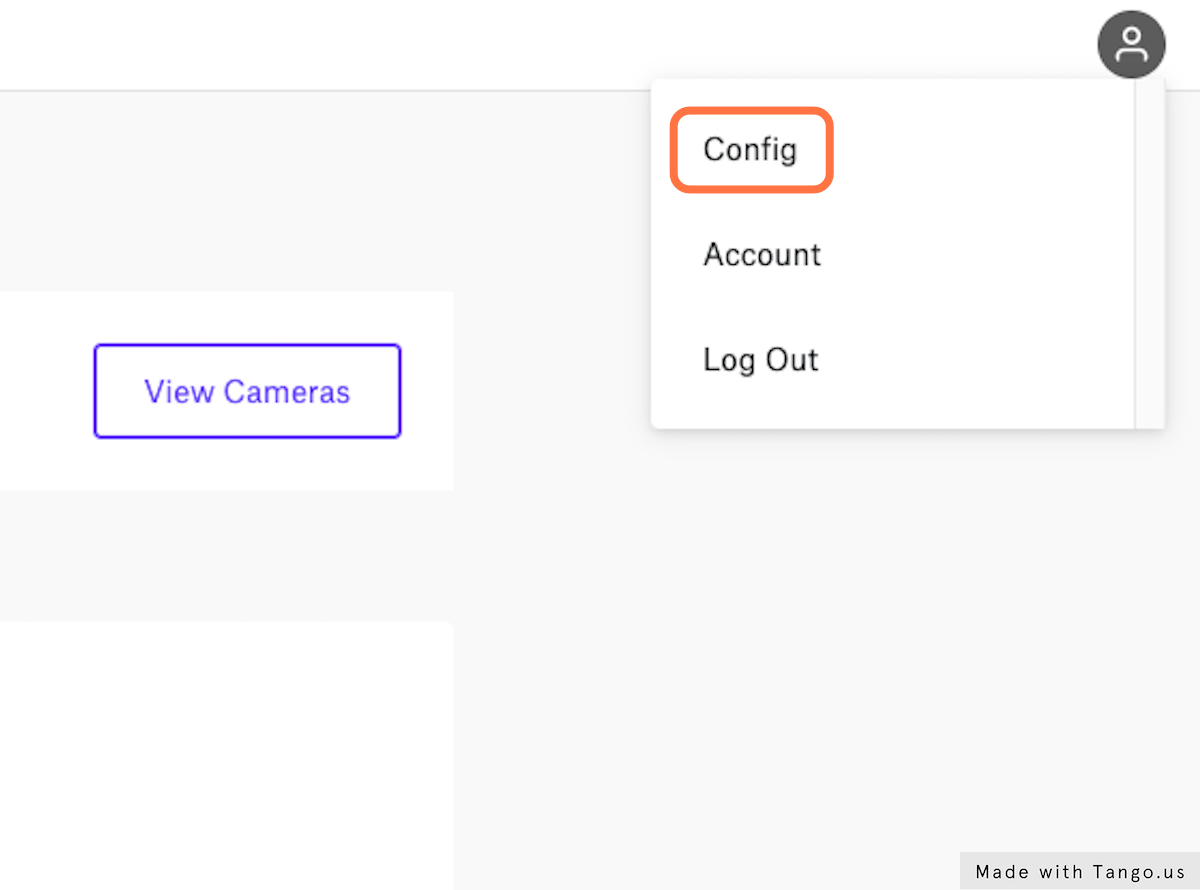
Click the User Icon and then "Config"
At the top right side of the screen, you can see the user icon. After clicking on the user icon, you can choose to edit settings by clicking "Config". This will lead you to the "Camera Settings" page within the Config submenu.
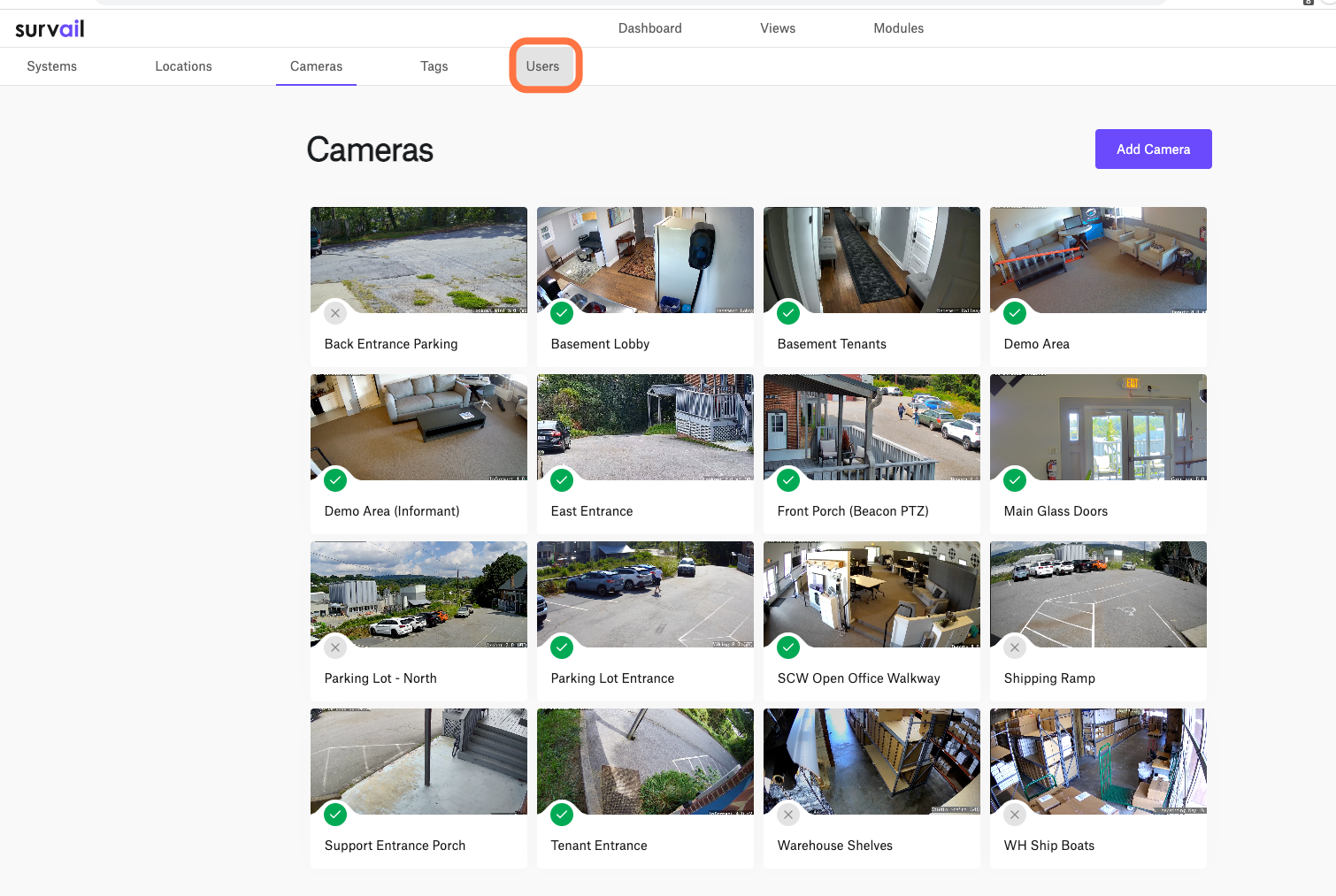
Click on "Users"
You'll want to navigate to the "Users" tab in the Config Sub Menu. This will lead you to the "User List" page within the Config submenu.
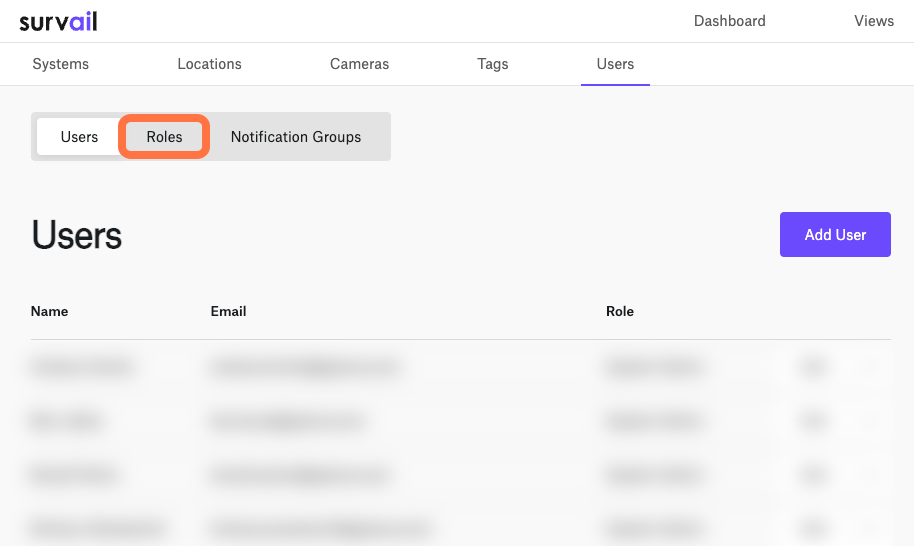
Click the "Roles" Subtab
On the "User List" page within the Config submenu, click the "Roles" tab in grey above the "User List" Panel.
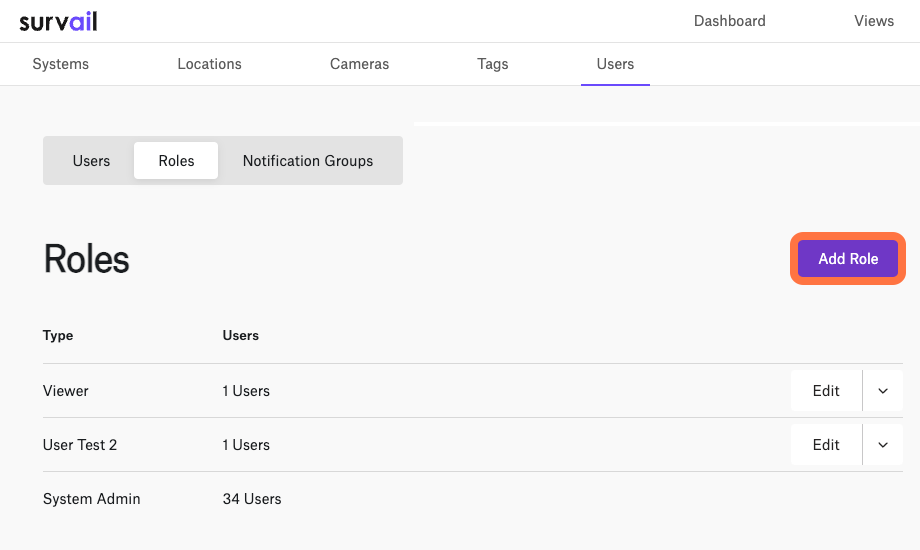
Click the "Add Role" Button
On the "Notification Group" page within the Config submenu, click the "Add Group" button inside the "Notification Groups" Panel. This is also where you could see a list of all your notification groups and edit existing ones.
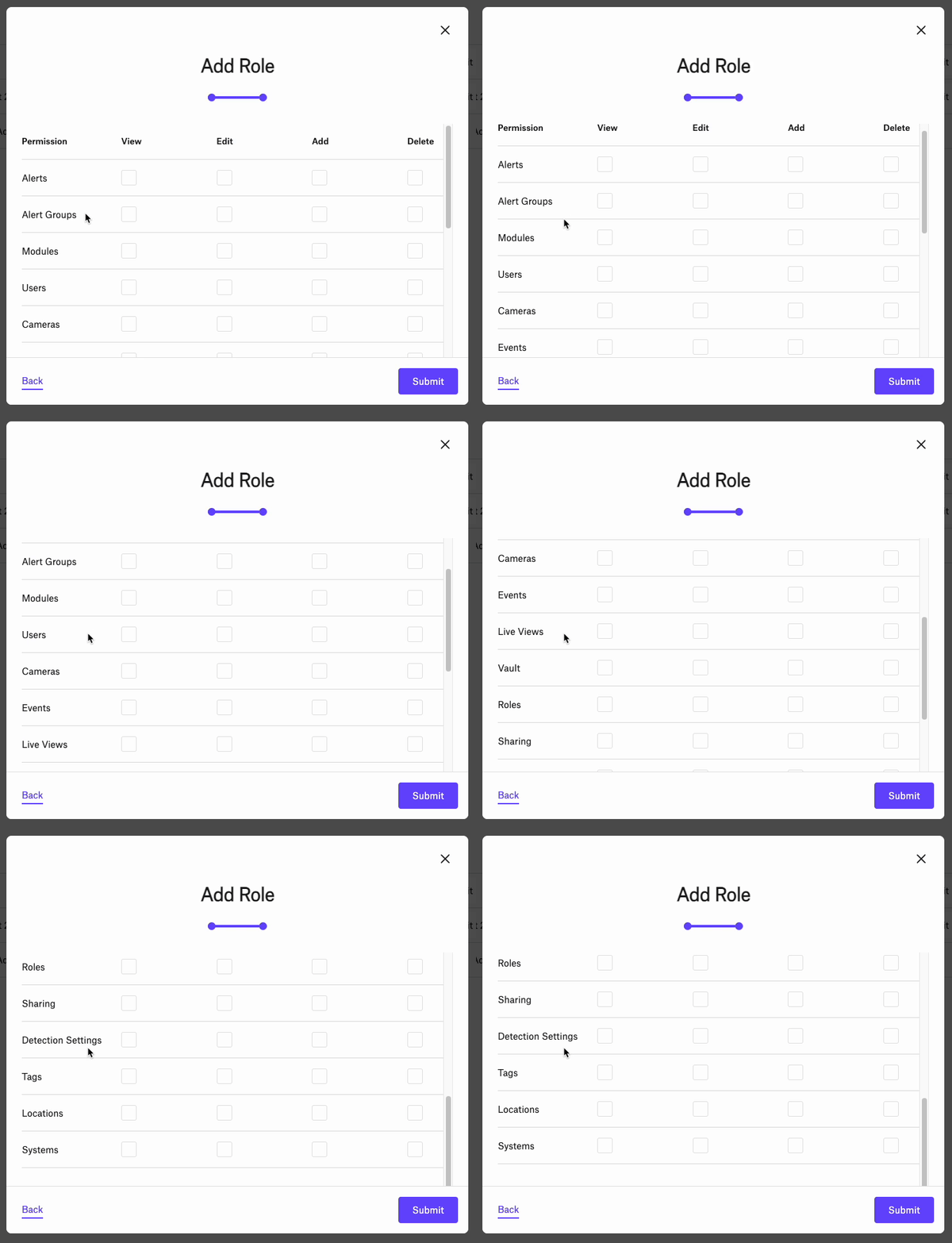
User Permissions Options
Custom User permissions can be set for Alerts, Alert Groups, Modules, Users, Cameras, Events, Live Views, Vault, Roles, Sharing, Detection Settings, Tags, Locations, or Systems.
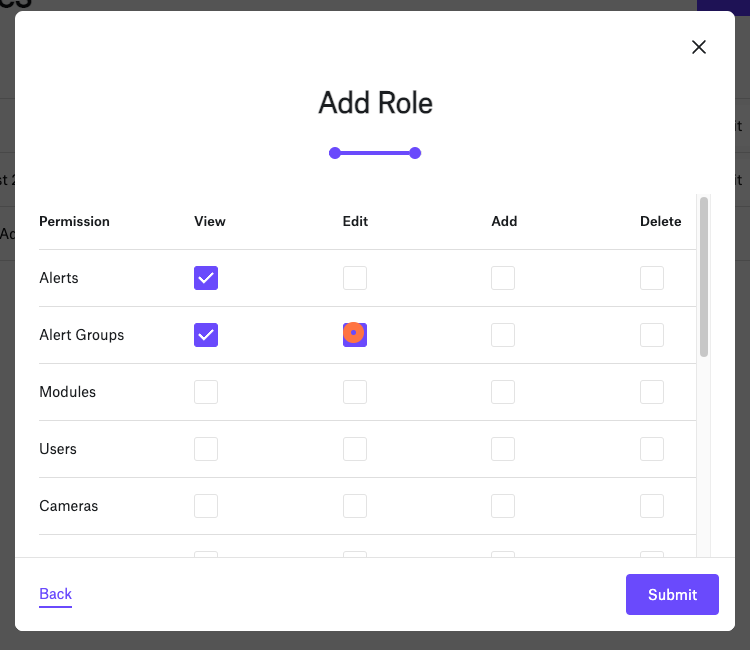
View, Edit, Add, or Delete
Each of these features can be limited to "View" (which means that the user can see the results), "Edit," (which means that the user can change settings on existing setups), "Add," (which means that the user can add additional line items, or "Delete," (which means the user can delete existing items).